Purchase order template: free download (Excel, Word, PDF)

Here is a free purchase order template you can download in Excel, Word or PDF. Unlike most templates, it has fields for the project, the budget category on each line and who approved the order. That way a purchase order records not just what you bought, but which budget it hits and who said yes.
- Excel: download the purchase order template (.xlsx, 11 KB)
- Word: download the purchase order template (.docx, 12 KB)
- PDF: download the purchase order template (.pdf, 45 KB)
No email needed. The Excel version calculates line totals, discount, VAT and the order total for you.
Download the free purchase order template
Each download contains:
- A blank purchase order on one A4 page, ready to fill in on screen or print.
- A filled-in example on a second sheet or page, so you can see what a complete order looks like.
- Line totals, discount, VAT and the total calculated automatically (Excel version).
- Project, budget category and approval fields, which most templates leave out.
What to include on a purchase order
A purchase order needs enough detail for the supplier to deliver the right thing, and for your finance team to match the invoice later. The template covers these fields:
| Field | Why it matters |
|---|---|
PO number | A unique reference the supplier quotes on the invoice. |
PO date | Shows when you committed to the cost. |
Your company and contact | Who is buying, and who the supplier should talk to. |
Supplier and supplier contact | Who you are ordering from. |
Delivery address, contact and date | Where, to whom and when the goods or work should arrive. |
Invoicing address | Where the supplier should send the invoice. |
Reference | The supplier’s quote number or your own reference, so the order can be traced back. |
Line items | Item number, description, quantity, unit and unit price for each thing you order. |
Discount and VAT | The agreed discount per line and the VAT rate, so the total matches the invoice. |
Payment and delivery terms | When you will pay, and how the goods are delivered. |
Project / budget | Which project or budget the order is charged to. |
Budget category | The cost code on each line, so you can see which part of the budget the order uses. |
Requested by, approved by, approval date | Who asked for the purchase and who approved it before it went to the supplier. |
The last three are what make a template work for project businesses. Without them, a purchase order tells you what was bought, but not which budget it hit or whether anyone checked it first. If you’re setting up numbering for the first time, here is what a PO number is and how to use one.
Purchase order example
Here is the template filled in for a fit-out subcontract. The company names and figures are made up, but the arithmetic is real.
Northfield Interiors orders partitions, ceilings, skip hire and site supervision from a drylining subcontractor for its Riverside office fit-out. A few things to notice:
- Each line has its own budget category: 09-200 Partitions, 09-500 Ceilings, 01-500 Site waste and 01-300 Supervision. When the invoice arrives, every pound already belongs to the right part of the budget.
- The 5% discount on the partitions line is written on the order, so the invoice can be checked against it. The line comes to £4,332.00 instead of £4,560.00.
- The subtotal is £9,812.00, VAT at 20% is £1,962.40 and the total is £11,774.40.
- The project manager approved the order on the day it was raised, before it was sent to the supplier.
For more on how purchase orders work on site, read our guide to purchase orders in construction.
How to fill in a purchase order, step by step
- Get the supplier’s quote. Agree price, quantity and delivery before you raise the order.
- Give the order a PO number. Use one running sequence for the whole company, and never reuse a number.
- Fill in the supplier, delivery and invoicing details. Name a delivery contact, so the driver or subcontractor knows who to call.
- Add the line items. One line per item or service, with quantity, unit and unit price. Add the budget category on every line.
- Check the totals. In the Excel template, discount, VAT and the total are calculated for you.
- Get approval before you send it. The approver should check the order against the project budget. Approval after the invoice arrives is too late to change anything.
- Send it to the supplier and keep a copy. Ask the supplier to quote the PO number on the invoice.
If you want the background first, here is how purchase orders work.
Word, Excel or PDF: which format to use
- Excel if you raise orders often. Totals, discount and VAT calculate themselves, and you can change the currency in one cell.
- Word if you want to add your own logo and fonts. You add up the totals yourself.
- PDF for printing a blank form to fill in by hand. It also includes the filled-in example.
Whichever you use, send the supplier a PDF of the finished order rather than an editable file.
When a template stops being enough
A template is the right start for a small team placing a handful of orders a month. These are the signs you have outgrown it:
- Duplicate or skipped PO numbers. As soon as more than one person raises orders, a shared spreadsheet sequence breaks.
- Approvals by email or chat. The approval happened, but it isn’t tied to the order, and nobody can find it when the invoice is disputed.
- No view of what’s already committed. You only see the cost when invoices arrive, often weeks after the money was committed. It’s the reason budget vs actual reporting arrives too late.
- Retyping everything. The same lines are typed into the order, and again into the accounting system when the bill comes.
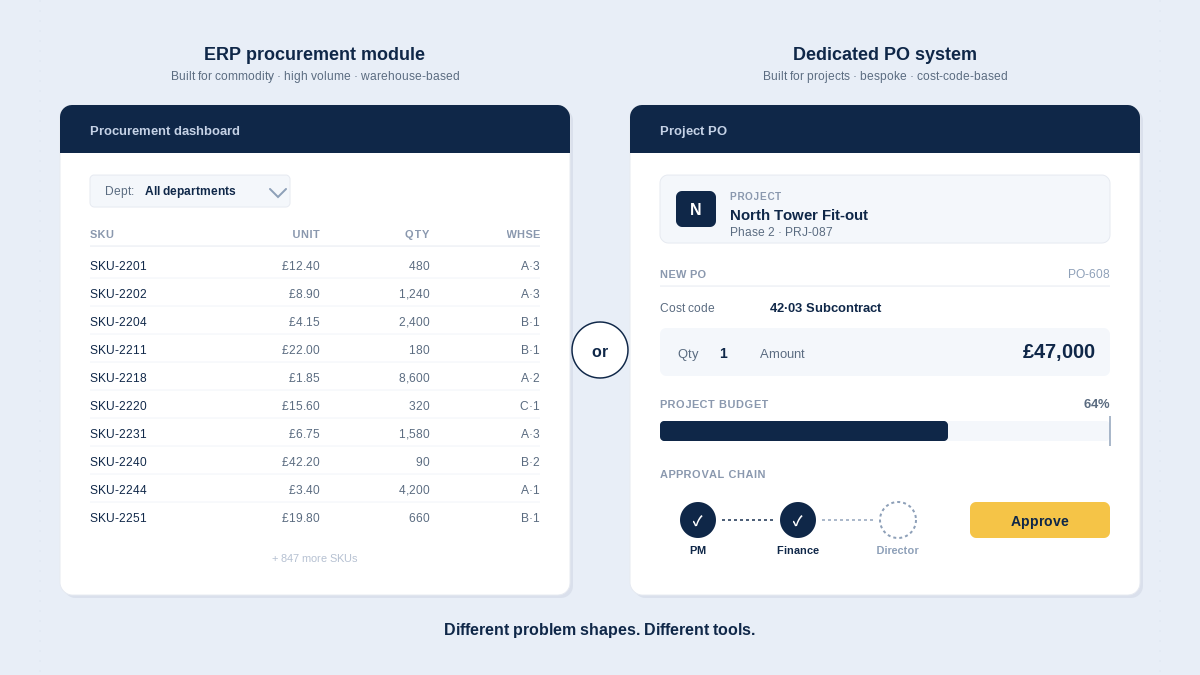
None of this means the template failed. It means the process has grown. At that point it’s worth knowing what to look for in PO approval software, and whether you need a dedicated PO system or an ERP module.
From template to purchase order software
CostTracker uses the same fields as this template, with the budget built in. Every purchase order is raised against a project budget, and the approver sees how the order affects that budget before approving it. An approval that would take the budget over its limit is blocked. CostTracker can also read a supplier’s quote and create the purchase order from it, and it syncs with Xero, QuickBooks, Sage, Tripletex, PowerOffice and other accounting systems.
When a template stops keeping up, see how CostTracker handles purchase orders.
Frequently asked questions
Yes. A purchase order is a document that sets out what you are buying, from whom, at what price and on what terms. You can write one from scratch, but a template makes sure you don’t forget fields such as the PO number, delivery date, VAT or approval.
A purchase order becomes a binding agreement once the supplier accepts it, for example by confirming the order or delivering the goods. Until then it is an offer to buy. If you need certainty about a specific contract, ask a lawyer.
Yes. The PO number links the order, the delivery note and the supplier’s invoice. Use one running sequence for the whole company, and ask suppliers to quote the number on every invoice.
The purchase order comes from the buyer before delivery and says what you agree to buy. The invoice comes from the supplier after delivery and asks for payment. Matching the two is how you avoid paying for something you didn’t order.
Yes. The Excel version of this template calculates line totals, discount, VAT and the order total, and includes a filled-in example on a second sheet. It is free to download, with no email needed.
Raise purchase orders against your budget
Try CostTracker free, or book a demo to see purchase orders, approvals and budgets on your own projects.